In standard generative AI, video output is usually delivered as an MP4 or a compiled GIF. For a video editor, this is fine. For a game developer, it is entirely useless.
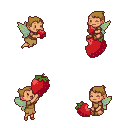
Game engines like Unity, Godot, and GameMaker do not process character movement via video files. They require pixel art spritesheets—single, flat image files containing a strict grid of discrete, sequentially ordered frames.
pixie.haus is engineered to bridge this gap between generative AI and game engine architecture. Whether you are generating native grids or complex video-to-video motion, our platform automatically parses the temporal data into engine-ready formats.
Here is how to utilize the Spritesheet View to edit, extract, and export perfect animation cycles for your game.
1. The Universal Spritesheet View
The most powerful aspect of the pixie.haus animation pipeline is how it handles data. It does not matter which model you use to generate your animation. Whether you use a native grid generator (like the Grok-powered Pixie Sprite 64px) or a complex temporal video model (like Seedance-1-Pro), the platform fundamentally treats the output as a sequence of individual, static assets.
When you open any animation in your library, you can access the Spritesheet View. This interface breaks the temporal generation down into its constituent parts, giving you raw access to every single frame the AI calculated.
2. Timeline Editing: Engineering the Perfect Loop
AI models are excellent at generating fluid motion, but they do not inherently understand the logic of game engine optimization. An AI might generate a walk cycle that is 24 frames long, but for memory footprint reasons, your game might only require a snappy 8-frame loop. Furthermore, the AI might generate a flawless animation, but include one "hallucinated" frame at the very end that breaks the loop.
Instead of spending another 50 credits to regenerate the entire sequence and hoping for a better result, you can fix the math directly in the Spritesheet View timeline.
Native Timeline Controls:
-
Remove Frames: Instantly delete hallucinated or unnecessary frames to create a more compact memory footprint.
-
Add & Duplicate Frames: Extend idle animations or hold specific poses (like an attack wind-up) by duplicating frames.
-
Reorder: Drag and drop frames to reverse an animation (e.g., turning a "sword swing" into a "sword retract") or create entirely new custom attack combinations.
-
FPS Adjustment: Dial in the precise speed of the animation to match your engine's internal clock tick.
Once you have engineered the perfect loop, saving the newly edited timeline as a fresh asset costs only 1 credit. This allows you to aggressively iterate and optimize your animations with virtually zero compute overhead.
3. Frame Extraction: The Ultimate Asset Multiplier
Because the Spritesheet View grants you access to every frame, an animation generation is not just an animation—it is a mass-generator of complex static poses.
If you run a character through an attack cycle, the AI must calculate the complex perspective of the character swinging a sword. You can scrub through the Spritesheet View, find the exact frame where the sword is perfectly extended, and extract that individual frame to your library.
Once extracted, that frame becomes a universal asset. You can:
-
Use it as a perfectly drawn static sprite for a UI element or splash art.
-
Open it in the Manual Editor to tweak the shading.
-
Send it to the Image-to-Image (I2I) AI pipeline. You can use that exact mid-attack pose as structural scaffolding, applying a new prompt to generate the character wearing different armor—perfectly preserving the complex action pose.
4. Exporting for Production
Once your timeline is pruned, looped, and optimized, you are ready for engine integration.
-
Raw Spritesheet Export: You can download the sequence as a compiled, horizontal or grid-based PNG spritesheet. Because the pixie.haus pipeline rigidly enforces grid constraints and strips the background, the PNG will feature a perfectly clean alpha channel.
-
Engine Integration: When you drop the downloaded spritesheet into Unity, Godot, or your engine of choice, you simply input the exact dimensions (e.g., 64x64 per frame) into the engine's sprite slicer. Because our generation grid is mathematically strict, the slicer will perfectly isolate every frame without requiring any manual offset adjustments.
By leveraging the Spritesheet View, you stop relying on the AI's probabilistic video output and take deterministic control over your game's memory and animation logic.